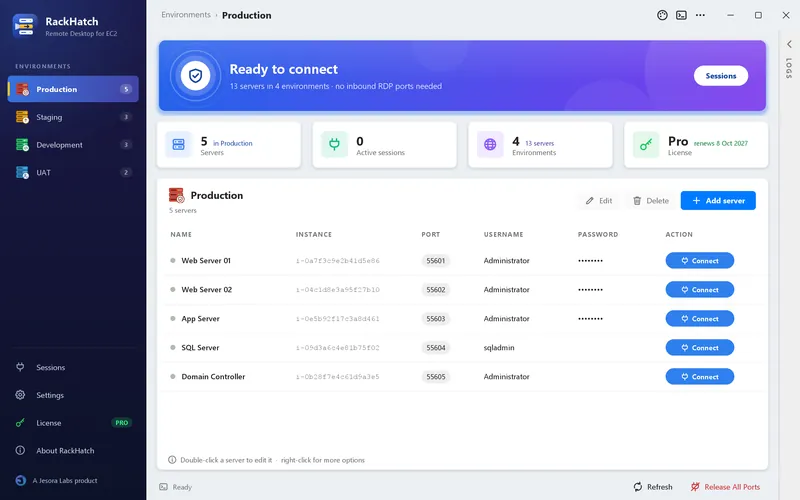
Private by design
Servers stay in private subnets. No inbound RDP port, no public IP and no bastion host to maintain.
Connect to your EC2 Windows servers in one click through encrypted AWS Systems Manager tunnels. No VPN, no jump host, no open RDP port.
Mac with an Intel processor? Download the Intel version. Not sure which you have? See Apple menu › About This Mac.
How it works
RackHatch uses AWS's own secure path to your instances, so your servers can stay in private subnets.
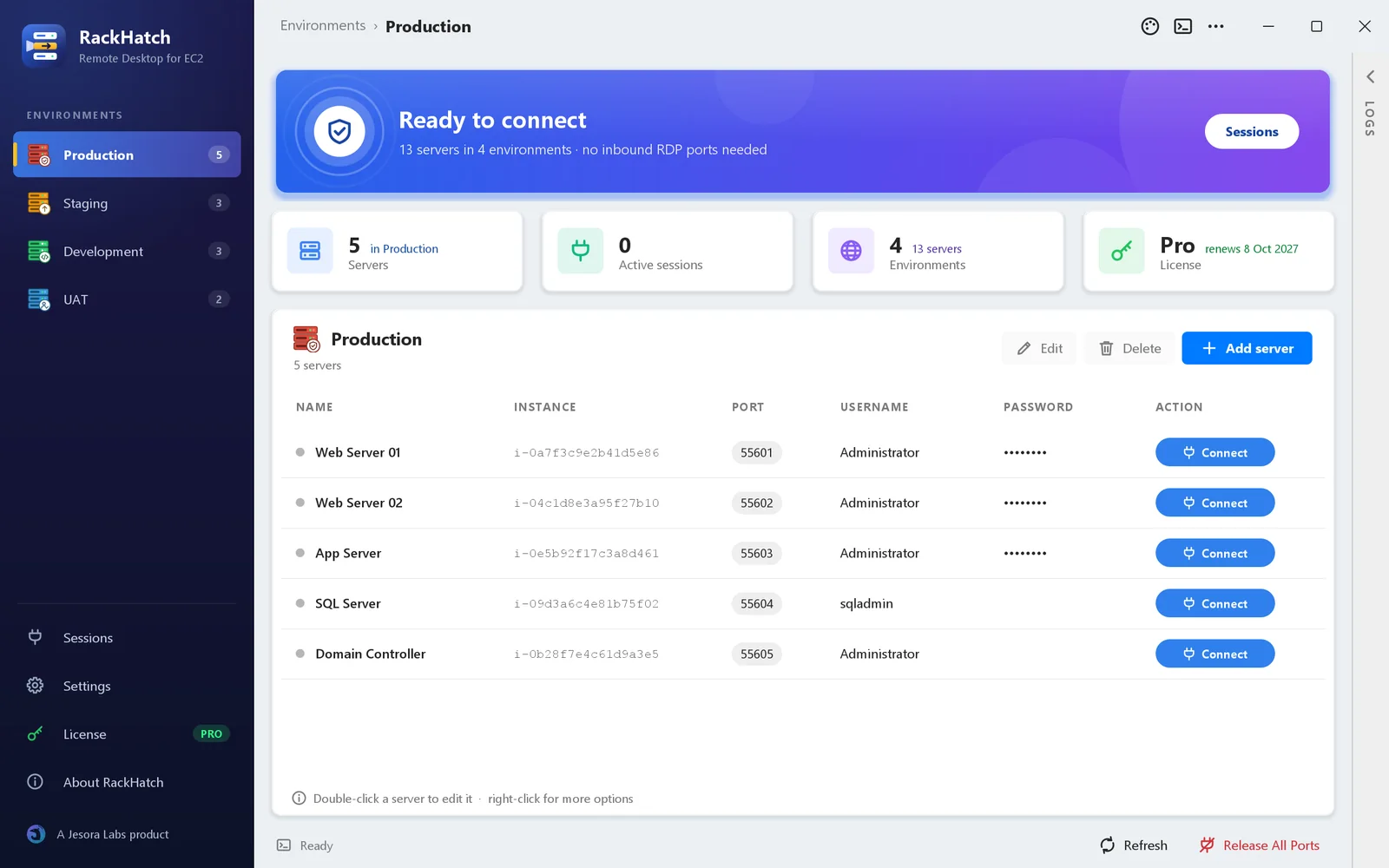
Pick the environment in the side bar, such as Production or Staging, and click Connect next to the server.
An AWS Systems Manager port-forwarding session to Remote Desktop starts, with that environment's AWS credentials.
Remote Desktop opens through the tunnel and signs in with exactly the account saved for that server.
Features
Servers stay in private subnets. No inbound RDP port, no public IP and no bastion host to maintain.
RackHatch starts the tunnel, opens Remote Desktop and signs in with exactly the account saved for that server.
Group servers into environments such as Production and Staging, each with its own colour, icon and AWS account.
A guided form explains every field, checks the instance ID, pastes it from the AWS console and suggests a free local port.
See all active Session Manager sessions of your AWS identity, from this computer or elsewhere, and close them.
Errors are explained in plain language with what to do next, and a timeline shows every step of each connection.
Screenshots
The screenshots show example data.
The details
RackHatch is built for people who open Remote Desktop many times a day, across several AWS accounts.
Every screen is explained in the product guideSaved Remote Desktop logins for localhost are cleared before each connection, so a session never opens with another server's account.
Disconnect ends the AWS session and frees its local port. Release All Ports closes every session of the app at once.
The Sessions page lists sessions of your own IAM identity. Colleagues' sessions in the same AWS account are never listed or closed.
Float the logs pane, dock it or open it in its own window (Ctrl+L). Copy error report collects the details for support, without passwords or keys.
Export your tabs, servers and AWS credentials to a file and import them on a new computer, or keep it as a backup. Secret keys and passwords stay encrypted with a password you choose.
Daylight, Arctic and Sunrise are light; Midnight, Nordic and Deep Ocean are dark. Animations can be switched off.
Security & privacy
Your AWS access stays governed by your own IAM policies. RackHatch can do only what your credentials allow, and uses only the Session Manager actions it needs.
Connections run through AWS Systems Manager over TLS. Servers need no public IP and no inbound RDP rule.
AWS secret keys and server passwords are encrypted for your user account, with Windows DPAPI or a key in your macOS Keychain, and can't be read on another computer. Exports are protected by a password you choose.
Access keys reach the AWS CLI only through the environment of each call: never AWS profiles, batch files, the command line or the logs.
License information is signed by the license server (Ed25519) and bound to your computer. Sign-in uses one-time e-mail codes.
The license server receives your e-mail address, your computer's name and an anonymous computer ID. Never your AWS keys, servers or passwords.
Pricing
3 days
Every feature, no payment details.
RackHatch Pro
₹399/ yearIn India · card or UPI through Razorpay
US$19/ yearElsewhere · PayPal account or card through PayPal
Buy inside RackHatch: License in the side bar › Buy. RackHatch never sees your card details.
Try every feature free before you buy: purchases are final once completed, and payment problems such as a duplicate charge are refunded in full. Prices as of October 2026; the price shown at checkout applies. See the terms, refund policy and delivery policy.
Requirements & getting started
{
  "Version": "2012-10-17",
  "Statement": [
    { "Effect": "Allow",
      "Action": "ssm:StartSession",
      "Resource": [
        "arn:aws:ec2:*:*:instance/*",
        "arn:aws:ssm:*::document/AWS-StartPortForwardingSession" ] },
    { "Effect": "Allow",
      "Action": [ "ssm:TerminateSession", "ssm:ResumeSession" ],
      "Resource": "arn:aws:ssm:*:*:session/${aws:username}-*" },
    { "Effect": "Allow",
      "Action": "ssm:DescribeSessions",
      "Resource": "*" }
  ]
}
Narrow the instance resources to the servers each team may reach, for example with tags.
Product guide
The dashboard, connecting, sessions, settings, troubleshooting, themes, licensing, security, requirements and an IAM policy to start from.
FAQ
No. RackHatch connects through AWS Systems Manager, so your instances can stay in private subnets with no inbound rules. They need the SSM Agent, an instance profile with AmazonSSMManagedInstanceCore and outbound HTTPS to the Systems Manager endpoints.
Access keys of an IAM user that may start, list and end Session Manager sessions. See the example IAM policy under Requirements; narrow it to the servers each team may reach.
Only what licensing needs: your e-mail address, your computer's name and an anonymous computer ID. Your AWS keys, servers and passwords stay on your computer, encrypted for your user account. See the privacy policy.
The installer isn't code-signed yet, so Windows SmartScreen shows this warning for new downloads. Click More info, then Run anyway. You can check the download against its SHA-256 checksum.
Download the version for your Mac: Apple Silicon (M1 and later) or Intel; Apple menu › About This Mac tells you which you have. Open the downloaded file, drag RackHatch to Applications and start it from there. RackHatch is signed and notarized, so macOS only asks once whether you want to open an app downloaded from the internet. You can check the download against its SHA-256 checksum: Apple Silicon, Intel.
Almost. RackHatch opens the connection in Microsoft's Windows App with the server's user name filled in. Windows App doesn't take a password from another app, so RackHatch puts the saved password on the clipboard for one minute: paste it with ⌘V when Windows App asks. Under About › Requirements, RackHatch checks for Windows App, the AWS CLI and the Session Manager plugin and links to their installers.
Yes. At checkout choose Pay once for one year: you pay ₹399 (or US$19) once and nothing is charged later. We e-mail you before the year ends, and you can add another year any time in RackHatch under License › Buy another year; it extends the same license.
In RackHatch, open License in the side bar, then Manage subscription, and choose Turn off automatic renewal. You aren't charged again, and RackHatch Pro stays active until the end of the period you paid for. Changed your mind? Click Turn automatic renewal back on under License before it ends; nothing is charged until your current period is over.
If something went wrong with a payment, such as a duplicate charge or a charge taken after you turned automatic renewal off, we refund it in full. Completed purchases and renewals are final, which is why every feature is free to try for 3 days first. Write to us from the e-mail address you use in RackHatch; the refund policy explains the details.
A license is active on one computer at a time. Sign in on the new computer with the same e-mail address and choose to move the license there; you can do this up to three times in 30 days. To bring your tabs, servers and credentials too, use Settings › Export… on the old computer and Import… on the new one.
The license usually arrives within a minute. Open License in the side bar to check again, and look for the e-mail with your license key (also in spam). If it's still missing after an hour, contact us with the e-mail address you paid with.
Download RackHatch and try every feature free for 3 days.